Reports
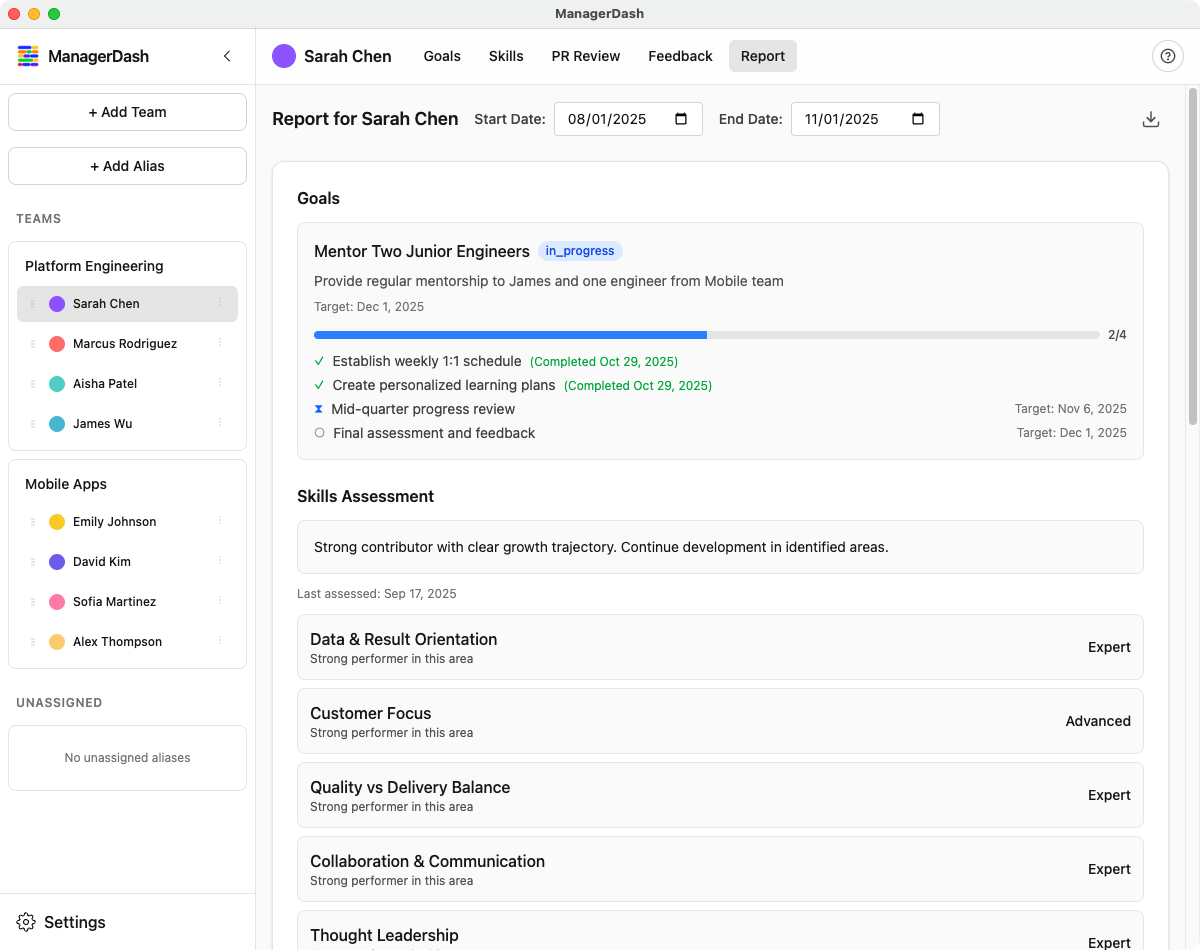
This guide covers how to generate, view, and export comprehensive reports in ManagerDash.
Understanding Reports
Reports provide consolidated views of:
- Goals and milestone progress
- Skills assessments
- Pull request evaluations
- Feedback history
- All data for a specific date range
Report Types
Individual Reports:
- Single person's complete data
- All activities and assessments
- Filtered by date range
- Exportable as Markdown
Team Reports:
- Team-wide overview
- Aggregated metrics
- Member comparisons
- Collective progress
Generating Individual Reports
Basic Report Generation
- Select a person from the sidebar
- Click the Report tab in top navigation
- Set the date range:
- Start Date: Beginning of period
- End Date: End of period (today by default)
- Report generates automatically
Date Range Selection
Common Ranges:
- Last Month: 30 days
- Last Quarter: 90 days (3 months)
- Last 6 Months: 180 days
- Last Year: 365 days
- Custom: Any start/end dates
Date Pickers:
- Click date field to open calendar
- Type date directly (YYYY-MM-DD)
- Use arrow keys to navigate
- Changes update report immediately
Report Updates
Reports refresh when:
- You change date range
- You switch between people
- Underlying data changes
- You navigate away and back
Report Sections
Goals Section
Displays:
- All goals in date range (based on creation date)
- Goal status with color badges
- Start and target dates
- Goal descriptions
- Milestone progress bars
- Detailed milestone lists with status
- Completion percentages
For Each Goal:
- Title and status badge
- Description (if present)
- Start and target dates
- Progress bar (if milestones exist)
- Milestone breakdown:
- ✓ Completed (green)
- ⧗ In Progress (blue)
- ✗ Blocked (red)
- ○ Not Started (gray)
- Completion ratio (e.g., "3/5")
- Milestone target dates
Skills Assessment Section
Displays:
- Current ratings for all competencies
- Grouped by category
- Last assessment date
- Overall notes (if any)
- Individual competency notes
For Each Competency:
- Competency name
- Current rating (0-4)
- Rating label
- Notes (if present)
- Category classification
Pull Requests Section
Displays:
- Total PR count
- Rating distribution
- Individual PR details
For Each PR:
- Title (with rating prefix)
- Repository and number
- Rating badge
- Closed date
- Changes (+additions/-deletions)
- Files changed count
- Comments count
- Notes
Feedback Section
Displays:
- All feedback in date range (by creation date)
- Chronologically ordered
- Full feedback content
- Author information
- Type and tags
For Each Feedback Item:
- Author name
- Type badge (if assigned)
- Full content
- Tags (if any)
- Creation date
Exporting Reports
Download as Markdown
- Navigate to Report tab
- Set desired date range
- Click the download icon (↓) in top-right
- File saves to your Downloads folder
- Filename format:
report_INITIALS_STARTDATE_to_ENDDATE.md
Markdown Format
Exported reports include:
Header:
- Person's name and initials
- Date range
- Generation timestamp
Sections:
- Goals (with full milestone details)
- Skills Assessment
- Pull Requests (with metrics)
- Feedback (chronologically)
Formatting:
- Proper Markdown syntax
- Headers for sections
- Lists for items
- Tables where appropriate
- Links preserved
- Clear visual hierarchy
Using Exported Reports
Performance Reviews:
- Attach to review documents
- Share with HR systems
- Print for meetings
- Archive for records
1-on-1 Preparation:
- Review before meetings
- Share with team member
- Discuss together
- Annotate offline
External Systems:
- Import into Word/Google Docs
- Convert to PDF
- Share via email
- Upload to HR platforms
Team Reports
Generating Team Reports
- Select a team from the sidebar
- Click the Report tab
- Set date range
- View aggregated team data
Team Report Contents
Team Goals:
- All team-level goals
- Collective progress
- Status distribution
- Milestone summaries
Team Skills:
- Aggregated competency data
- Team averages per skill
- Skill distribution
- Gap analysis
Team Overview:
- Member count
- Active goals
- Overall progress
- Key achievements
Report Interpretation
Reading Goal Progress
Progress Bars:
- Green fill = % complete
- Based on completed/total milestones
- Empty = no progress
- Full = all milestones done
Status Colors:
- Gray: Planned (not started)
- Blue: In Progress (active)
- Green: Done (completed)
- Red: Blocked (impediment)
Understanding Skills Data
Rating Scale:
- 0: Not a focus
- 1: Needs focus
- 2: On track
- 3: Outperform
- 4: Exceptional
Overall Notes:
- Provide context
- Explain trends
- Note changes
- Highlight focus areas
Analyzing PR Patterns
Rating Distribution:
- Mostly "Exceeding": High performer
- Mostly "Meeting": Consistent performer
- Mix: Normal variability
- Mostly "Below": Needs support
Volume Analysis:
- High volume: Productive
- Low volume: Check workload/blockers
- Increasing: Ramping up
- Decreasing: Investigate
Feedback Themes
Look for:
- Recurring positive themes (strengths)
- Recurring constructive themes (development areas)
- Pattern changes over time
- Balance of positive/constructive
Best Practices
Report Generation Timing
Regular Reviews:
- Monthly: Last 30 days
- Quarterly: Last 90 days
- Semi-annually: Last 180 days
- Annually: Last 365 days
Special Events:
- Before performance reviews
- After project completion
- Before promotion discussions
- For calibration sessions
Date Range Selection
Guidelines:
- Align with review cycles
- Use consistent periods
- Include full context
- Consider project timelines
Examples:
- Q1 Review: Jan 1 - Mar 31
- H1 Review: Jan 1 - Jun 30
- Project: Project start - Project end
- Annual: Jan 1 - Dec 31
Using Reports Effectively
Preparation:
- Generate report 1 week before review
- Review thoroughly
- Note discussion points
- Export for reference
- Share with team member (if appropriate)
During Meetings:
- Have report open
- Walk through sections together
- Discuss patterns
- Reference specific examples
- Set goals based on data
Follow-Up:
- Export final version
- Attach to review documents
- File for records
- Use for next review comparison
- Track improvement over time
Report Maintenance
Keep Data Current:
- Update goals regularly
- Rate PRs promptly
- Capture feedback frequently
- Refresh skills assessments
- Review reports before generating
Clean Data:
- Archive old goals
- Remove outdated feedback
- Update stale information
- Fix incorrect dates
- Verify accuracy before export
Common Workflows
Quarterly Performance Review
3 weeks before:
- Update all goals and milestones
- Complete skills assessment
- Rate recent PRs
- Add any missing feedback

2 weeks before:
- Generate 90-day report
- Review for completeness
- Export to Markdown
- Convert to desired format

1 week before:
- Share with team member
- Review together
- Discuss patterns
- Prepare talking points

During review:
- Use report as guide
- Reference specific examples
- Discuss each section
- Set next quarter goals

After review:
- Export final report
- Attach to HR system
- File for records
- Use for next review
Monthly Check-In
Day before 1-on-1:
- Generate 30-day report
- Quick review
- Note 2-3 discussion points

During meeting:
- Pull up report
- Discuss highlights
- Address concerns
- Update goals if needed

After meeting:
- Update report data
- Add new feedback
- Archive completed items
Annual Review
1 month before:
- Generate 365-day report
- Deep review of all sections
- Identify patterns and trends
- Compare to previous year

3 weeks before:
- Update all assessments
- Complete all pending ratings
- Add comprehensive notes
- Export report

2 weeks before:
- Review with team member
- Gather their input
- Align on assessment
- Prepare promotion case (if applicable)

During review:
- Use report as foundation
- Discuss year-over-year growth
- Reference major achievements
- Set annual goals

After review:
- Final export
- Submit to HR
- Archive for future reference
- Begin tracking for next year
Tips and Tricks
- Regular Exports: Export reports monthly for historical comparison
- Consistent Dates: Use same date ranges quarter-over-quarter
- Screenshots: Capture visual elements (progress bars, etc.)
- Annotations: Add notes to exported Markdown before sharing
- Backups: Keep exported reports as data backups
- Templates: Create standard report formats for your org
- Sharing: Redact sensitive info before external sharing
- Printing: Export works well for printing
- Comparisons: Keep past reports to show growth
- Automation: Schedule regular report generation times
Common Issues
Missing Data in Report
Problem: Expected data doesn't appear Solution:
- Check date range (is data outside range?)
- Verify creation dates of items
- Expand date range if needed
- Check if items were deleted
Report Not Updating
Problem: Changes don't appear in report Solution:
- Change date range back and forth to force refresh
- Navigate away and back
- Refresh the page
- Verify underlying data saved
Export Not Working
Problem: Download button doesn't work Solution:
- Check browser permissions for downloads
- Try different browser
- Verify enough disk space
- Check file isn't already open
Formatting Issues in Export
Problem: Markdown export looks wrong Solution:
- Open in Markdown editor (VS Code, Typora)
- Check for special characters
- Convert to different format if needed
- Re-export if corrupted
Date Range Confusion
Problem: Unsure what date range to use Solution:
- Match review period exactly
- When in doubt, go longer
- Use calendar month/quarter boundaries
- Document your standards
Advanced Features
Milestone Reporting
Reports now include detailed milestone information:
- Progress bars showing completion percentage
- Complete list of milestones with status icons
- Completion dates for finished milestones
- Target dates for pending milestones
- Overall milestone statistics
Multi-Period Analysis
While ManagerDash doesn't automate this, you can:
- Export reports for different periods
- Compare manually
- Track trends over time
- Document growth patterns
Custom Date Ranges
Use custom ranges for:
- Project-specific reports
- Incident analysis periods
- Sabbatical/leave exclusion
- Special initiatives
Report Customization
After export, you can:
- Add executive summary
- Highlight key points
- Remove sensitive sections
- Add context or commentary
- Reformat for specific audiences
Integration with Other Features
Goals and Reports
- Goals filter by creation date
- Include all milestones with current status
- Show progress metrics
- Link to development plans
Skills and Reports
- Snapshot of current assessment
- Historical context in notes
- Support for rating discussions
- Evidence for competency levels
PRs and Reports
- Objective quality metrics
- Pattern analysis
- Support for technical discussions
- Evidence for performance ratings
Feedback and Reports
- Complete feedback history
- Multiple perspective capture
- 360° review support
- Development tracking
Security and Privacy
Data Sensitivity
Reports may contain:
- Performance information
- Sensitive feedback
- Private notes
- Personal development areas
Best Practices:
- Redact before sharing externally
- Use secure channels for transmission
- Don't share without consent
- Follow company policies
- Respect privacy
Export Management
- Store exports securely
- Delete old exports
- Don't share via public channels
- Encrypt if required
- Follow data retention policies
Report Templates
Performance Review Template
# [Name] Performance Review - [Period]

## Summary
[Add 2-3 sentence overview]

## Goals Achievement
[Reference report goals section]

## Skills Development
[Reference report skills section]

## Technical Contributions
[Reference report PR section]

## Feedback Summary
[Reference report feedback section]

## Next Period Goals
[Set based on report insights]
Promotion Case Template
# Promotion Case: [Name] to [Level]

## Performance Over Review Period
[Insert report data]

## Exceeds Current Level
[Highlight "Exceeding" PRs and "4" ratings]

## Demonstrates Next Level
[Specific examples from goals and feedback]

## Recommendation
[Your assessment based on comprehensive report]