Feedback Management
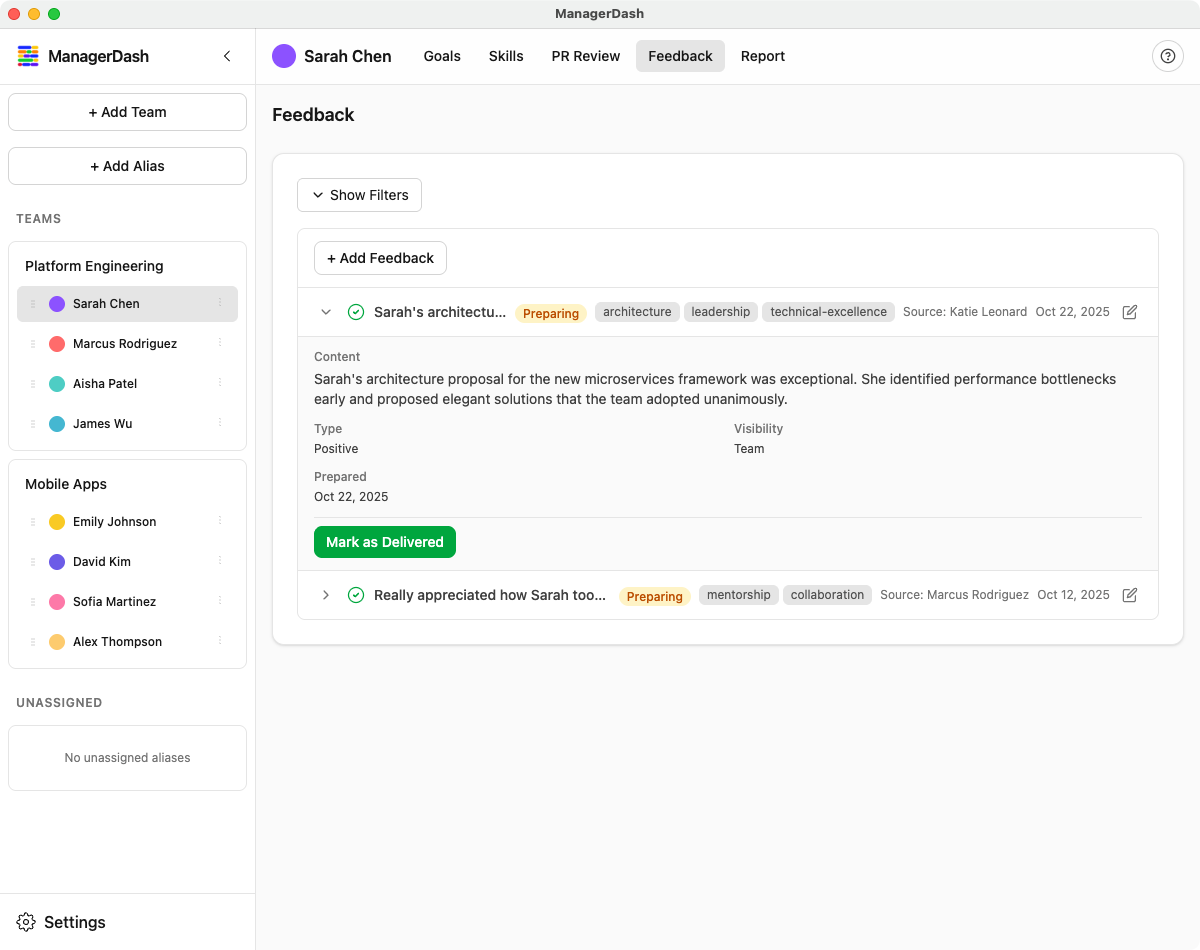
This guide covers how to capture, organize, and manage feedback in ManagerDash.
Understanding Feedback
Feedback in ManagerDash helps you:
- Track feedback from multiple sources
- Organize feedback by type and visibility
- Prepare for 1-on-1s and performance reviews
- Document positive contributions and growth areas
Feedback Properties
- Content: The feedback text (required)
- Author: Who provided the feedback (required)
- Type: Note or Feedback - distinguishes personal notes from feedback intended for delivery (default: Note)
- Vibe: Positive, Constructive, or Neutral - the sentiment/tone (only for feedback items)
- State: None, Pending, or Delivered - the delivery lifecycle status
- Visibility: Private, Team, or Public (optional)
- Tags: Comma-separated keywords for organization
- Date: Automatically tracked (created and updated)
Adding Feedback
Quick Add from Home Dashboard
The Home Dashboard provides a fast way to add feedback:
- From the Home screen, find "Quick Add Feedback" panel
- Select the Person from dropdown
- Choose Type:
- Note: Personal observation or reminder (default)
- Feedback: Feedback ready to be shared
- If you selected Feedback, choose Vibe:
- Positive: Praise, recognition, things going well
- Constructive: Areas for improvement, coaching
- Neutral: Objective observations
- Enter feedback in the Content field
- Click "Save Feedback"
From Individual's Feedback Panel
For more detailed feedback entry:
- Select the person from the sidebar
- Click the Feedback tab
- Click "+ Add Feedback" button
- Fill in the form:
- Source: Your name or feedback source (defaults to "manager")
- Content: The feedback text (required)
- Type: Note or Feedback (defaults to Note)
- Vibe: Positive, Constructive, or Neutral (only shown when Type is Feedback)
- Visibility: Private, Team, Public, or leave blank
- Tags: Comma-separated (e.g., "code review, collaboration")
- Click Save
From PR Reviews (Automatic)
ManagerDash can automatically generate feedback from your PR reviews:
- Navigate to a person's PR Review tab
- Review a pull request and evaluate it
- When marking a PR as "Feedback Opportunity":
- Feedback is automatically created as feedback type with pending state
- Content includes PR title, your review comments, and evaluation
- Tagged automatically with "PR Review" and the PR number
- State set to "Pending" for you to review before delivery
- Find the auto-generated feedback in:
- The person's Feedback tab
- Your Home Dashboard under "Pending Feedback"
- Edit the feedback to refine before marking as delivered
Benefits:
- Captures specific examples from code reviews
- Links feedback directly to technical work
- Preserves context (PR number, date, comments)
- Streamlines feedback collection workflow
Editing Feedback
From Feedback List
- Navigate to the person's Feedback tab
- Find the feedback item
- Click the pencil icon on the right
- The row expands into edit mode
- Update any fields
- Click Save or Cancel
Adding Notes to Existing Feedback
Starting in v1.6.0, you can add follow-up notes to feedback conversations:
- Find the feedback item you want to add a note to
- Click the note icon on the feedback row
- Enter your additional note or follow-up comment
- The note is added to the feedback conversation thread
- This helps track the evolution of feedback over time
Keyboard Shortcuts While Editing
- Esc: Cancel editing without saving
- ⌘/Ctrl + Enter: Save changes quickly
Clicking Outside to Cancel
When editing feedback, clicking outside the edit area automatically cancels and closes the form.
Organizing Feedback
Item Types
Note (default):
- Personal observations or reminders
- Not intended for immediate delivery
- State automatically set to "None"
- Vibe defaults to "Neutral"
- Use for: capturing ideas, observations you may or may not share later
Feedback:
- Feedback ready to be or already shared with the person
- State defaults to "Pending" when created
- Requires choosing a vibe (positive, constructive, or neutral)
- Can be marked as delivered when shared
Converting Between Types
You can easily convert items between notes and feedback:
Note → Feedback:
- Click the menu icon (⋯) on any note
- Select "Convert to Positive Feedback" or "Convert to Constructive Feedback"
- The item becomes feedback with the chosen vibe and "Pending" state
Feedback → Note:
- Click the menu icon (⋯) on any feedback item
- Select "Convert to Note"
- The item becomes a note with neutral vibe and "None" state
Vibes (Sentiment)
Positive:
- Recognizes achievements
- Highlights strengths
- Shows green checkmark icon (✓)
- Use for: accomplishments, growth, exemplary work
Constructive:
- Identifies improvement areas
- Provides developmental guidance
- Shows yellow alert icon (!)
- Use for: areas to develop, coaching points
Neutral:
- Objective observations
- Balanced feedback
- Shows thought bubble icon
- Use for: neutral information, context without judgment
Visibility Levels
Private:
- For your eyes only
- Sensitive or preliminary feedback
- Personal notes for reviews
Team:
- Shareable with the team
- Team-visible recognition
- Collaborative feedback
Public:
- Broadly shareable
- Company-wide recognition
- Performance review material
No Visibility Setting:
- Default state
- Classify later
Tags
Tags help organize and find feedback:
Adding Tags:
- Enter comma-separated values
- Examples: "code review", "presentation", "mentorship"
- Multiple tags per feedback item
Using Tags:
- Search by tag to find related feedback
- Group feedback by theme
- Prepare for reviews by topic
Filtering and Searching
Show/Hide Filters
Click "Show Filters" button to reveal filter controls:
Search
- Search Field: Type to search
- Searches across:
- Feedback content
- Author names
- Tags
- Real-time filtering as you type
Type Filter
Select from dropdown:
- All Types: Show everything
- Notes: Only personal notes
- Feedback: Only feedback items
Vibe Filter
Select from dropdown:
- All Vibes: Show all sentiments
- Positive: Only positive feedback
- Constructive: Only constructive feedback
- Neutral: Only neutral items
State Filter
Select from dropdown:
- All States: Show all delivery states
- Draft: Items not tracked for delivery (notes)
- Pending: Feedback ready to deliver but not yet shared
- Delivered: Feedback already shared with the person
Visibility Filter
Select from dropdown:
- All: Show all visibility levels
- Private: Only private feedback
- Team: Only team-visible feedback
- Public: Only public feedback
Sort Order
- Newest First: Most recent at top (default)
- Oldest First: Chronological order
Combine Filters
Use multiple filters together:
- Example: "Feedback + Positive + Pending + Tagged 'presentation'"
- Example: "Notes + Neutral + Tagged 'code review'"
- Filters narrow results progressively across all dimensions
Delivery States
None
Purpose: Items not tracked for delivery (personal notes)
Uses:
- Default state for notes
- Personal observations
- Ideas you may or may not share later
- Reference material
Actions:
- Convert to Feedback: Transform into deliverable feedback (state becomes "Pending")
- Edit: Update content anytime
- Delete: Remove if no longer relevant
Pending
Purpose: Feedback ready to deliver but not yet shared
Uses:
- Capture feedback immediately
- Refine before delivery
- Prepare for scheduled 1-on-1s
- Collect examples over time
Location: Appears in "Pending Feedback" section on Home Dashboard and Feedback tab
Actions:
- Mark as Delivered: Click menu icon (⋯) and select "Mark as Delivered"
- Edit: Refine before delivery
- Convert to Note: Change your mind and keep as personal reference
- Delete: Remove if no longer relevant
Delivered
Purpose: Feedback you've shared with the person
Uses:
- Historical record
- Performance review preparation
- Track patterns over time
- Document conversations
Location: Appears in "Recent Feedback" on Home Dashboard and in Feedback tab
Actions:
- View: Review past feedback
- Convert to Note: If you want to repurpose as reference material
Deleting Feedback
⚠️ Warning: Deletion is permanent and cannot be undone.
- Click the menu icon (⋯) on the feedback item
- Select Delete from the menu
- Confirm in the dialog if prompted
Best Practices
Capturing Feedback
- Capture Immediately: Add items when events happen
- Start with Notes: Capture observations as notes, convert to feedback later when ready
- Be Specific: Include concrete examples
- Use Pending State: Create feedback items and leave in pending until ready to deliver
- Tag Consistently: Develop a tagging system and stick to it
- Note Source: Always fill in Author field
Writing Feedback
Positive Feedback:
- Be specific about what was done well
- Explain the impact
- Link to values or competencies
- Example: "Your code review on PR #123 caught a critical bug and suggested a cleaner approach"
Constructive Feedback:
- Focus on behaviors, not personality
- Be actionable
- Provide context
- Example: "In the design meeting, jumping to solutions before understanding requirements led to rework"
Organization
-
Tag Strategy: Create categories like:
- Technical: "code", "architecture", "testing"
- Soft Skills: "communication", "collaboration", "leadership"
- Projects: "project-x", "migration", "launch"
-
Visibility Guidelines:
- Private: Initial thoughts, sensitive items
- Team: Shared achievements, team feedback
- Public: Major accomplishments, promotion material
-
Regular Reviews:
- Weekly: Mark drafts as delivered
- Monthly: Review and tag untagged feedback
- Quarterly: Use for performance discussions
Integration with Other Features
With PR Reviews:
- Mark PRs as "Feedback Opportunity" to auto-generate feedback
- Auto-generated feedback includes PR context and your comments
- Feedback tagged with "PR Review" and PR number
- Created as feedback type with pending state
- Review and refine auto-generated feedback before marking as delivered
- Provides concrete examples for technical feedback
With Goals:
- Reference feedback when setting goals
- Link feedback tags to goal areas
- Use feedback as evidence of progress
With Skills:
- Support skill ratings with feedback examples
- Add feedback to skills assessment notes
- Track skill development through feedback patterns
In Reports:
- Feedback automatically included in reports
- Filter by date range
- Export for performance reviews
Common Workflows
Weekly Feedback Capture
Monday: Review last week's work
Monday: Capture observations as notes
Tuesday-Thursday: Add notes as events happen
Thursday: Convert important notes to feedback (pending state)
Friday: Mark pending feedback as delivered after 1-on-1s
Friday: Review and tag all week's items
Performance Review Prep
2 weeks before: Filter by person and date range
2 weeks before: Review all feedback
1 week before: Group by competency/theme
1 week before: Select key examples for review
During review: Reference specific feedback items
After review: Add new feedback from discussion
1-on-1 Preparation
Day before: Review person's pending feedback
Day before: Mark most important items for discussion
During meeting: Pull up feedback tab (filter to pending)
During meeting: Mark pending feedback as delivered
After meeting: Add any new notes or feedback from discussion
Team Recognition
1. Capture positive feedback with "Team" visibility
2. Add tags like "recognition", "achievement"
3. Use in team meetings to call out wins
4. Reference in team reports
5. Share in team channels
Tips and Tricks
- Quick Capture: Use Home Dashboard quick add for speed
- Start with Notes: Capture observations as notes, convert to feedback when ready to deliver
- Batch Conversion: Review notes weekly and convert important ones to pending feedback
- Search Power: Use tags to find all feedback on a topic
- Template Tags: Develop consistent tags across team
- Weekly Ritual: Set aside time each week to capture observations
- Note Everything: When in doubt, save as note and decide later
- Be Prompt: Capture within 24 hours while details are fresh
- Edit Later: Quick capture now, refine wording later
- Use Three-Way Filters: Combine Type + Vibe + State for powerful queries
- Export Reports: Generate comprehensive feedback summaries
Common Issues
Can't Find Recent Feedback
Problem: Feedback not showing in list Solution:
- Check filters - may be filtered out
- Try "Show All" filters
- Verify correct person is selected
Search Not Working
Problem: Search doesn't find expected feedback Solution:
- Check spelling
- Search is case-insensitive
- Make sure filters aren't excluding results
- Try searching by tag instead
Edit Form Won't Close
Problem: Stuck in edit mode Solution:
- Press Esc key
- Click outside the form area
- Refresh the page if necessary
Pending Feedback Not Showing
Problem: Can't find pending feedback Solution:
- Check Home Dashboard "Pending Feedback" section
- Verify state is "Pending" not "Delivered" or "None"
- Check the individual's Feedback tab with State filter set to "Pending"
- Make sure Type is "Feedback" not "Note"
Auto-Save Not Working
Problem: Changes aren't saving Solution:
- Wait for "Saved" indicator
- Check internet connection (even though it's local)
- Try refreshing and re-entering
Advanced Features
Bulk Tagging Strategy
Create a tagging taxonomy:
- Skills: Technical, leadership, communication
- Values: Collaboration, innovation, quality
- Projects: By project name or code
- Time: Q1, Q2, H1, Annual
- Type: Win, learning, blocker
Feedback Patterns
Look for patterns over time:
- Recurring themes in positive feedback = strengths
- Recurring themes in constructive = development areas
- Changes in frequency = engagement or concern
- Tag trends = skill development or project focus
Integration with External Tools
While ManagerDash stores feedback locally:
- Export reports for inclusion in HR systems
- Screenshot feedback for sharing in other tools
- Use as source for performance review documents
Privacy and Sensitivity
Best practices for sensitive feedback:
- Use "Private" visibility for sensitive items
- Be professional in all feedback language
- Remember all feedback is stored locally on your machine
- Export sensitive data carefully
Keyboard Shortcuts
- Tab: Navigate between fields in forms
- Enter: Submit form (when focused on submit button)
- Esc: Cancel editing
- ⌘/Ctrl + Enter: Quick save while editing