Goals and Milestones
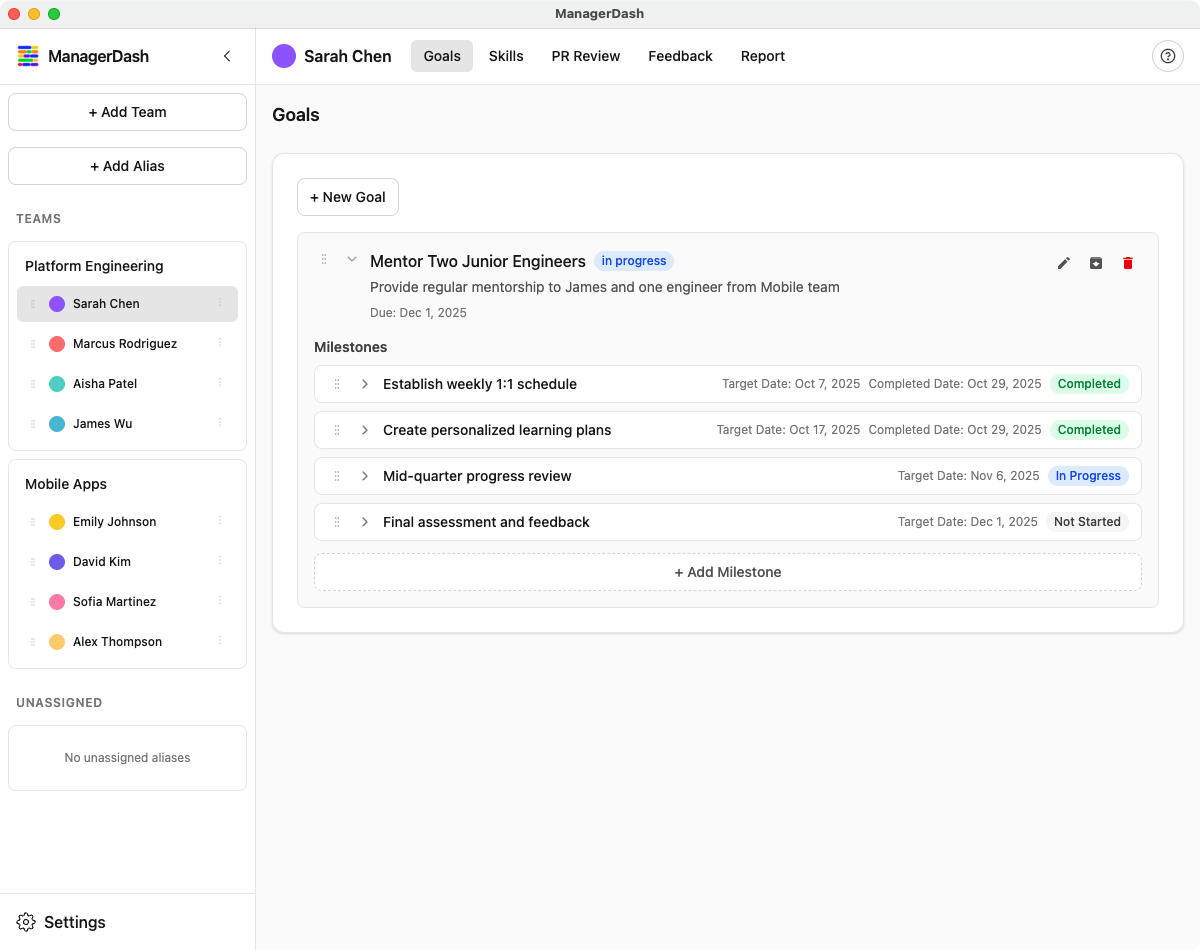
This guide covers how to create, manage, and track goals and milestones in ManagerDash.
Understanding Goals
Goals represent high-level objectives for individuals or teams. Each goal can have multiple milestones to track progress.
Goal Types
ManagerDash supports two types of goals:
- Development Goals: Time-bound objectives focused on specific deliverables and projects
- Career Goals: Long-term professional growth objectives without specific deadlines
Goal Properties
- Title: Clear, concise name for the goal (required)
- Description: Detailed explanation of the goal
- Goal Type: Development or Career (selected when creating)
- Status: Current state (Backlog, Planned, In Progress, Done, Blocked, Archived)
- Start Date: When work begins
- Target Date: When the goal should be completed (Development goals only)
- Milestones: Trackable sub-tasks or checkpoints
Creating a Goal
For an Individual
- Select the person from the sidebar
- Click the Goals tab in the top navigation
- Click "+ New Goal" button
- Fill in the goal form:
- Title: Enter the goal name (required)
- Description: Add context and details
- Goal Type: Choose Development or Career
- Status: Select initial status (default: Planned)
- Start Date: Choose when to begin
- Target Date: Set the deadline (Development goals only - Career goals don't require a target date)
- Click Save
For a Team
- Select the team from the sidebar
- Click the Goals tab
- Follow the same process as individual goals
- Team goals appear on the team dashboard
Editing a Goal
- Navigate to the Goals tab
- Click the edit icon (pencil) on the goal card
- Update any fields
- Click Save to confirm changes
Goal Status
Available Statuses
ManagerDash supports six goal statuses to track progress:
- Backlog: Goals that are not yet ready to be worked on - early ideas or deprioritized items that you want to track but aren't committed to yet
- Planned: Goal is defined and committed, but work hasn't started yet
- In Progress: Active work is happening
- Done: Goal has been completed
- Blocked: Progress is stopped by dependencies or issues
- Archived: Goal is no longer active (removed from main view)
Changing Status
- Click the edit icon on the goal
- Select new status from the dropdown
- Save the change
Understanding the Backlog Section
Goals with Backlog status are displayed differently from other goals:
- Backlog goals appear in a separate collapsible section at the bottom of the goals list
- The Backlog section can be expanded or collapsed using the chevron icon
- Backlog goals cannot be reordered (no drag handles are shown)
- They are completely separated from active goals before splitting into Career and Development categories
When to use Backlog:
- Early-stage goal ideas that need more definition
- Lower-priority goals that you want to track but aren't ready to commit to
- Future objectives that depend on other work being completed first
- Goals that have been deprioritized but might return to active status later
Moving from Backlog to active status: When you're ready to commit to a backlog goal, simply edit it and change the status to Planned. The goal will then appear in the appropriate active section (Career or Development goals).
Milestones
Milestones break down goals into smaller, trackable units.
Creating a Milestone
- Expand a goal (it should not be collapsed)
- In the goal's action row, click "+ Add Milestone"
- Fill in the milestone form:
- Title: Name of the milestone (required)
- Description: Additional context
- Status: Not Started, In Progress, Completed, Blocked
- Target Date: Optional deadline
- Click Save
Milestone Properties
- Title: What needs to be accomplished
- Description: Details and acceptance criteria
- Status: Current state
- Target Date: When it should be completed
- Last Updated: Automatically tracked
Milestone Status Options
- Not Started: Hasn't begun yet (○)
- In Progress: Currently being worked on (⧗)
- Completed: Finished (✓)
- Blocked: Cannot proceed (✗)
Editing a Milestone
- Click the edit icon next to the milestone
- Update fields
- Click Save
Deleting a Milestone
- Click the delete icon (trash) next to the milestone
- Confirm deletion in the dialog
Progress Tracking
Goal Progress Bar
When a goal has milestones:
- A progress bar shows completion percentage
- Calculated as: (Completed Milestones / Total Milestones) × 100%
- Updates automatically when milestone status changes
Visual Indicators
Collapsed Goal View:
- Status badges with color coding
- Milestone summary counts
- Quick view of completion ratio
Expanded Goal View:
- Full milestone list
- Individual milestone status icons
- Target dates for each milestone
Milestone Statistics
When goals are collapsed, you see:
- ✓ Completed count (green)
- ⧗ In Progress count (blue)
- ✗ Blocked count (red)
- ○ Not Started count (gray)
- Overall ratio (e.g., "3/5")
Reordering Goals
You can drag and drop to reorder goals:
- Click and hold the drag handle (⋮⋮) on a goal card
- Drag to the desired position
- Release to drop
- Order is saved automatically
This helps you prioritize by putting most important goals at the top.
Collapsing/Expanding Goals
Collapsing a Goal
Click the chevron icon (▼) next to the goal title to collapse:
- Hides milestone details
- Shows milestone summary statistics
- Saves screen space
Expanding a Goal
Click the chevron icon (▶) to expand:
- Shows all milestones
- Displays full details
- Allows editing milestones
Archiving Goals
Why Archive?
Archive goals that are:
- Completed and no longer need tracking
- Cancelled or deprioritized
- Historical records you want to keep
How to Archive
- Click the edit icon on the goal
- Change status to Archived
- Save the change
Viewing Archived Goals
- Go to the Goals tab
- Click "View Archived" button
- See all archived goals
- Click "View Active" to return
Restoring an Archived Goal
- View archived goals
- Click edit on the archived goal
- Change status to any active status (e.g., Planned)
- Save to restore to active view
Deleting Goals
⚠️ Warning: Deleting a goal permanently removes it and all associated milestones. This cannot be undone.
- Click the delete icon (trash) on the goal card
- Read the confirmation dialog
- Click Delete to confirm
- Goal and all milestones are removed
Best Practices
Goal Setting
- Be Specific: Use clear, measurable goal titles
- Set Deadlines: Always include target dates for development goals
- Break It Down: Create milestones for complex goals
- Review Regularly: Update status weekly
- Keep Current: Archive completed or cancelled goals
- Use Backlog Wisely: Place ideas in Backlog status until you're ready to commit. Move to Planned when ready to start work
Milestone Management
- Bite-Sized Tasks: Each milestone should be achievable in 1-2 weeks
- Clear Criteria: Description should define "done"
- Ordered Progression: Arrange milestones in logical sequence
- Track Blockers: Use Blocked status to highlight issues
- Update Promptly: Mark completed milestones immediately
Team Goals
- Collective Ownership: Ensure entire team understands the goal
- Clear Responsibilities: Note who owns each milestone
- Regular Check-ins: Discuss in team meetings
- Celebrate Wins: Acknowledge milestone completions
Individual Goals
- Align with Team: Connect to team objectives
- Career Development: Include growth-focused goals
- Balanced Mix: Combine technical and soft skill goals
- Regular 1-on-1s: Review progress in meetings
Common Use Cases
Quarterly Objectives
Goal: "Ship New Dashboard Feature"
├─ Milestone: Complete design review
├─ Milestone: Implement frontend components
├─ Milestone: Build backend API
├─ Milestone: Write tests
└─ Milestone: Deploy to production
Career Development
Goal: "Improve Technical Leadership"
├─ Milestone: Lead 2 design reviews
├─ Milestone: Mentor early career engineer
├─ Milestone: Present at team tech talk
└─ Milestone: Document architecture decisions
Project Delivery
Goal: "Launch Mobile App v2.0"
├─ Milestone: Feature freeze (June 1)
├─ Milestone: Beta testing complete (June 15)
├─ Milestone: Fix critical bugs (June 25)
└─ Milestone: Production release (July 1)
Dashboard Integration
Starting in v1.6.0, goals and milestones are more prominently featured on the Home Dashboard:
Milestone Summaries
The Home Dashboard now shows milestone summaries for active goals:
- Quick overview of goal progress across your team
- Visual indicators for milestone completion status
- Links to individual goal details
- Highlights goals that need attention or are blocked
Summary Cards
The dashboard includes summary cards that show:
- Total active goals across your team
- Overall milestone completion percentage
- Goals approaching their target dates
- Blocked goals that need intervention
Reporting
Goals and milestones appear in:
- Home Dashboard: Quick summaries and milestone status
- Individual Reports: Personal achievement summaries with career and development goals separated
- Team Reports: Collective progress overview
- Markdown Exports: Detailed goal breakdowns with progress metrics
Reports show:
- Goal type (Career or Development)
- Goal status and dates
- Milestone completion percentage
- Completed vs. total milestones
- Individual milestone status with completion dates
Note: In reports, career goals are separated from development goals to provide a clearer view of long-term career objectives versus time-bound project goals.
Tips and Tricks
- Quick Status Update: Click edit, change status dropdown, save—takes 5 seconds
- Keyboard Navigation: Use Tab to move between form fields quickly
- Drag to Prioritize: Reorder active goals to reflect current priorities (note: backlog goals cannot be reordered)
- Collapse for Overview: Collapse all goals to see high-level progress
- Milestone Naming: Use action verbs (Complete, Implement, Review, Deploy)
- Target Dates: Set realistic dates with buffer time
- Status Synchronization: When all milestones are completed, update goal to Done
- Archive Regularly: Keep active list clean by archiving old goals
- Backlog as Parking Area: Use Backlog goals to track future work without cluttering your active goals list
Common Issues
Can't See Milestones
Problem: Milestones section is empty Solution: Make sure the goal is expanded (click chevron icon)
Progress Not Updating
Problem: Completed milestones but percentage unchanged Solution: Refresh the page or wait a moment for auto-update
Can't Delete Goal
Problem: Delete button doesn't work Solution: Ensure you're not in edit mode; close the edit form first
Lost Goal Order
Problem: Goals returned to default order Solution: Reordering is saved immediately; this shouldn't happen. Try refreshing.
Keyboard Shortcuts
When editing goals or milestones:
- Esc: Cancel editing without saving
- ⌘/Ctrl + Enter: Save changes (in milestone description)
- Tab: Move to next field
- Shift + Tab: Move to previous field