Skills Assessment
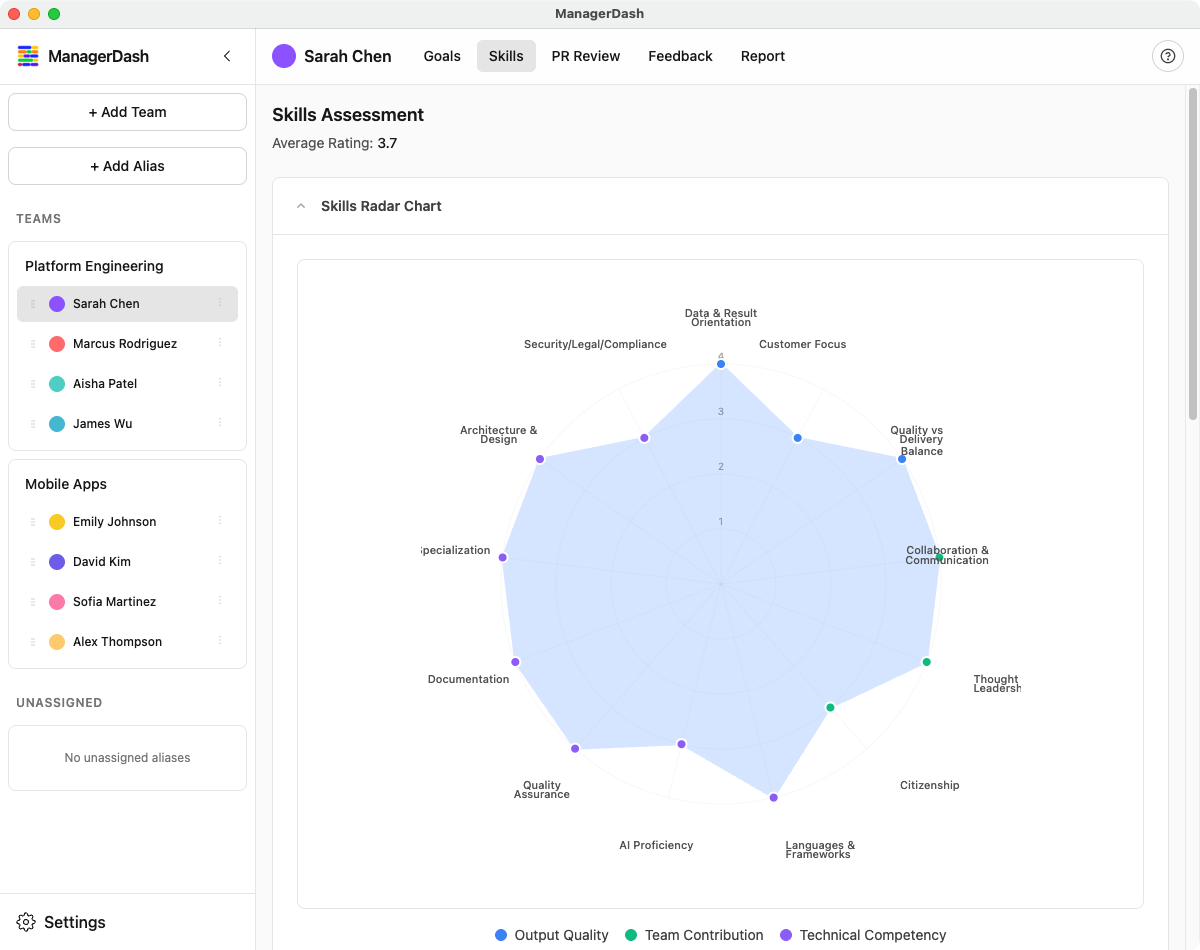
This guide covers how to evaluate and track skills and competencies in ManagerDash.
Understanding Skills Assessment
Skills assessment helps you evaluate team members across multiple competencies, track skill development over time, and identify areas for growth.
Key Concepts
- Assessment: A complete skills evaluation for one person
- Competency: A specific skill or capability being evaluated
- Category: Grouping of related competencies (e.g., Technical, Team Contribution)
- Rating: Numeric score from 0-4 for each competency
Creating a Skills Assessment
First-Time Setup
When you first visit the Skills tab for a person:
- Select the person from the sidebar
- Click the Skills tab
- If no assessment exists, you'll see an empty state
- Click "Create Skills Assessment"
- The assessment is created with all configured competencies
Note: Competencies are defined globally and must be set up in Settings → Manage Teams before creating assessments.
Rating Scale
Each competency uses a 0-4 rating scale:
| Rating | Label | Meaning | Color |
|---|---|---|---|
| 0 | Not a focus | Not a development priority | Gray |
| 1 | Needs focus | Development priority | Orange |
| 2 | On track | Meets expectations | Blue |
| 3 | Outperform | Exceeds expectations | Green |
| 4 | Exceptional | Significantly exceeds expectations | Purple |
Evaluating Competencies
Rating a Competency
- Navigate to Skills tab for the person
- Find the competency you want to rate
- Click one of the numbers (0-4) in the rating selector
- The rating is saved automatically
- You'll see a "Saved" indicator
Expanded vs. Collapsed View
Collapsed (Default):
- Shows competency name
- Shows current rating selector (0-4)
- Displays a preview of the description
Expanded:
- Click the down arrow (▼) next to the competency name
- View full description
- See rating explanation
- Add notes
- View last updated date
Adding Notes
Notes provide context for ratings:
- Expand the competency card
- Scroll to the Notes field
- Type your observations
- Notes save automatically after you stop typing
- Use notes to:
- Document specific examples
- Track improvement areas
- Note discussion points for 1-on-1s
Skill Categories
Competencies are organized into three default categories:
Output Quality
Skills related to work product and deliverables:
- Code quality
- Design decisions
- Testing thoroughness
- Documentation
Team Contribution
Skills related to collaboration and team dynamics:
- Communication
- Mentorship
- Knowledge sharing
- Cross-team collaboration
Technical Competency
Core technical capabilities:
- System design
- Problem solving
- Technology expertise
- Architecture knowledge
Radar Chart Visualization
The radar chart provides a visual overview of skills:
Understanding the Chart
- Axes: Each competency is an axis radiating from the center
- Scale: 0 (center) to 4 (outer edge)
- Shape: The filled area shows the skill profile
- Balance: A more circular shape indicates balanced skills
- Gaps: Indentations show areas for development
Using the Chart
- Expand/Collapse: Click the arrow to show/hide the chart
- Visual Comparison: Quickly spot strengths and gaps
- Discussion Tool: Use in performance reviews
- Progress Tracking: Compare over time (take screenshots)
Chart Features
- Color-coded by category
- Legend shows all competencies
- Interactive hover (shows exact values)
- Responsive sizing
Average Rating
The average rating provides an overall score:
- Displayed at the top of the Skills panel
- Calculated from all competency ratings
- Formula: Sum of all ratings ÷ Number of competencies
- Updates automatically when ratings change
- Useful for tracking overall growth
Managing Competencies
Adding New Competencies
Competencies are managed globally in Settings:
- Go to Settings → Manage Teams
- Navigate to the Skill Categories section
- Click "+ Add Competency"
- Fill in:
- Name: Brief title (e.g., "Code Review Quality")
- Category: Choose from dropdown
- Description: Detailed explanation
- Click Save
Note: New competencies automatically appear in all existing assessments within ~2 seconds.
Editing Competencies
- Go to Settings → Manage Teams → Skill Categories
- Find the competency
- Click Edit
- Update fields
- Save changes
Note: Changes affect all assessments using this competency.
Skill Category Management
To add or modify categories:
- Go to Settings → Manage Teams
- Find Skill Categories section
- Add/edit category definitions
- Categories help organize competencies
Team Skills View
For team-level skills assessment:
- Select a team from the sidebar
- Click the Skills tab
- View aggregated skills across team members
- Compare competencies team-wide
- Identify collective strengths and gaps
Team Skills Features
- Comparison View: See all team members side-by-side
- Average Scores: Calculate team averages per competency
- Radar Overlay: Compare multiple team members visually
- Gap Analysis: Identify team-wide development needs
Best Practices
Assessment Timing
- Initial Baseline: Create within first month
- Regular Updates: Review every 3-6 months
- Pre-Review: Update before performance reviews
- Post-Projects: Reassess after major projects
Rating Guidelines
- Be Consistent: Use the same criteria for everyone
- Use Full Scale: Don't cluster around 2-3
- Evidence-Based: Rate based on observed work
- Growth Mindset: Focus on development, not judgment
- Seniority Context: Consider role expectations
Note-Taking
- Specific Examples: "Led architecture review for X project"
- Observable Behaviors: Not personality traits
- Recent Evidence: Focus on last 3-6 months
- Balanced: Include strengths and growth areas
- Actionable: Link to development goals
Discussion Preparation
Use skills assessment in 1-on-1s:
- Review Together: Share screen, walk through competencies
- Self-Assessment: Have them rate themselves first
- Compare Views: Discuss rating differences
- Growth Plans: Link low ratings to development goals
- Celebrate Strengths: Acknowledge high ratings
Integration with Goals
Link skills to goals for development:
- Identify competencies rated 0-1 (needs focus)
- Create goals to improve these areas
- Add milestones with skill-building activities
- Reference competency in goal description
- Reassess after goal completion
Reporting
Skills data appears in reports:
Individual Reports
- Current ratings for all competencies
- Notes for each competency
- Last assessment date
- Average rating
Exported Reports
- Full competency breakdown
- Ratings with labels
- Notes included
- Markdown formatted
Common Workflows
Onboarding Assessment
Week 1: Create baseline assessment
Week 2-4: Observe work, gather evidence
Month 1: Complete initial ratings
Month 1: Discuss in 1-on-1
Month 1: Create development goals based on gaps
Quarterly Review
Week before review: Update all ratings
Week before review: Add fresh notes
During review: Review radar chart together
During review: Discuss changes from last quarter
During review: Set goals for next quarter
Performance Review Prep
2 weeks before: Update skills assessment
1 week before: Export report
1 week before: Compare with last period
During review: Use radar chart as visual aid
After review: Update goals based on discussion
Tips and Tricks
- Quick Updates: Focus on competencies that changed since last review
- Use Notes Field: Document examples as they happen, not just during reviews
- Screenshot Charts: Save radar charts to track visual progress over time
- Category Focus: Review one category at a time for thoroughness
- Compare to Goals: Check if skills align with goal progress
- Seniority Levels: Consider role level when interpreting ratings
- Team Calibration: Discuss ratings with other managers for consistency
- Auto-Save: Don't worry about saving; ratings and notes save automatically
Common Issues
Assessment Won't Create
Problem: "No competencies defined" message Solution: Go to Settings → Manage Teams and add skill competencies first
Missing Competencies
Problem: Assessment doesn't show all competencies Solution: Wait 2 seconds for auto-refresh, or refresh the page
Can't See Notes
Problem: Notes field is hidden Solution: Click the down arrow to expand the competency card
Average Not Updating
Problem: Average rating doesn't reflect new ratings Solution: Page should auto-update; try refreshing if it doesn't
Radar Chart Not Showing
Problem: Chart area is blank Solution:
- Make sure you have at least 3 competencies rated
- Click the arrow to expand the chart section
- Check that competencies are assigned to categories
Keyboard Navigation
- Tab: Move to next competency
- Shift + Tab: Move to previous competency
- 0-4 Keys: Select rating (when focused on rating buttons)
- Enter: Expand/collapse competency card
- Arrow Keys: Navigate between rating options
Advanced Features
Skill Competency System
The competency system is flexible:
- Create custom competencies for your org
- Modify descriptions to match your values
- Add competencies as needs evolve
- Remove outdated competencies (affects all assessments)
Assessment Date Tracking
- Last Updated: Tracks when any competency was changed
- Assessment Date: Overall assessment timestamp
- Automatic: No manual date entry needed
- Visible in Reports: Shows in exported data
Live Updates
- Ratings save on click (no delay)
- Notes save 500ms after you stop typing
- Average recalculates instantly
- "Saving..." and "Saved" indicators provide feedback